
Your iPhone’s camera might be broken, unavailable, or you might prefer not to use it – but that doesn’t mean you can’t scan QR codes! This comprehensive guide reveals multiple methods to scan QR codes on your iPhone without ever touching the camera app.
🎯 Quick Methods Overview
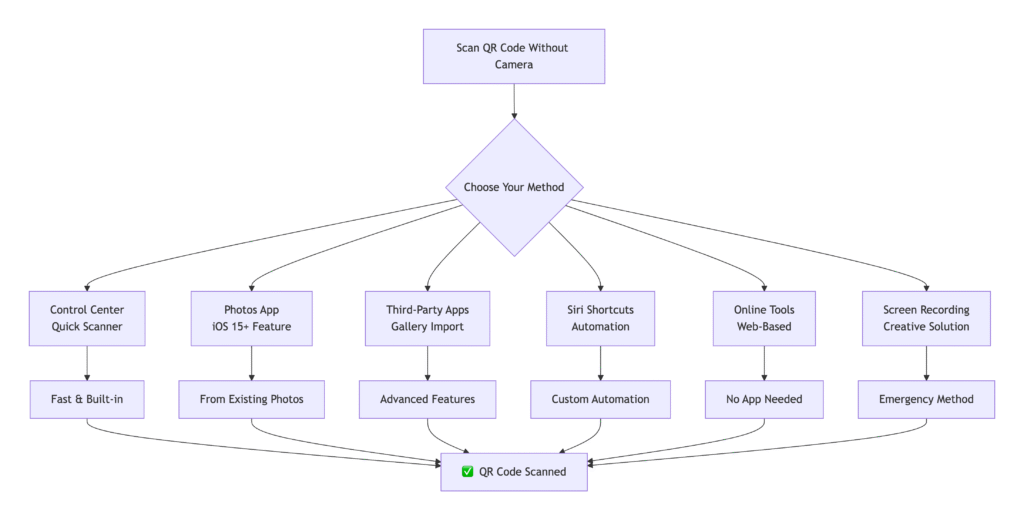
📋 Method 1: Using Control Center QR Scanner
The Easiest Built-in Alternative
Setup Steps:
- Enable QR Scanner in Control Center:
- Go to Settings → Control Center
- Scroll down and tap the + button next to “Scan QR Code”
- It will move to “Included Controls”
- Access QR Scanner:
- Swipe down from top-right corner (iPhone X and later)
- Or swipe up from bottom (iPhone 8 and earlier)
- Tap the QR code icon in Control Center
- Scan Without Camera App:
- The dedicated scanner opens immediately
- Point at QR code – no camera app interface
- Get instant results
Benefits:
- ✅ No camera app required
- ✅ Faster than opening Camera app
- ✅ Dedicated scanning interface
- ✅ Works even if Camera app has issues
📸 Method 2: Using Photos App (iOS 15+)
Scan from Existing Images
How It Works:
- Get the QR Code Image:
- Take screenshot of QR code on another device
- Receive image via message or email
- Save from website or document
- Scan from Photos:
- Open Photos app
- Find the image with QR code
- Press and hold directly on the QR code
- Tap the notification that appears
- Instant Action:
- Opens links immediately
- Downloads apps from App Store
- Connects to Wi-Fi networks
- Saves contact information
Supported QR Code Types:
- 🌐 URLs and website links
- 📱 App Store downloads
- 📶 Wi-Fi network connections
- 📇 Contact information (vCards)
- ✉️ Email drafts
- 📞 Phone numbers
🔧 Method 3: Third-Party QR Scanner Apps
Apps with Gallery Import Features
Recommended Free Apps:
| App | Best Feature | Gallery Import | Cost |
|---|---|---|---|
| QR Reader & Scanner | Batch scanning | ✅ Yes | Free |
| Scan – QR Code Reader | History saving | ✅ Yes | Free |
| QR Code Reader | Multiple formats | ✅ Yes | Free |
| Barcode Scanner | Product lookup | ✅ Yes | Free |
How to Use:
- Download your chosen app from App Store
- Look for “Import” or “Gallery” button
- Select QR code image from Photos
- App scans and processes the image
- Get results instantly
Advanced Features:
- 📁 Batch processing – Scan multiple images
- 📊 Scan history – Keep track of previous scans
- 🔄 Multiple formats – Works with various QR types
- ☁️ Cloud integration – Scan from cloud storage
🤖 Method 4: Siri Shortcuts Automation
Create Your Own QR Scanner
Setup Steps:
- Install Shortcuts App (if not already installed)
- Create New Shortcut:
- Tap + to create new shortcut
- Add “Select Photos” action
- Add “Scan QR Code in Images” action
- Add “Show Result” action
- Run Your Shortcut:
- Open Shortcuts app
- Tap your QR scanner shortcut
- Select image from Photos
- Get scan results
Sample Shortcut Actions:
1. Select Photos from Library
2. Scan QR Code from Each Image
3. Show Scan Results
4. Open URLs Automatically
Benefits:
- 🎯 Completely customizable
- 🔄 Automate multiple scans
- 📱 Works offline
- 🚀 No camera required
🌐 Method 5: Online QR Scanner Tools
Web-Based Solutions
How to Use:
- Visit QR Scanner Website:
- Open Safari or Chrome
- Go to online QR scanner tool
- Examples: FreeQRtools, QR Code Scanner
- Upload Your Image:
- Tap “Upload Image” button
- Select QR code from Photos
- Wait for processing
- Get Results:
- Website displays scanned content
- Click links or copy information
Top Web-Based Tools:
- Free QR Tools – Simple and fast
- OnlineBarcodeReader.com – Multiple formats
- ZXing Decoder – Open source option
- QRCode Monkey Reader – User-friendly
Advantages:
- 💻 No app installation needed
- 🔄 Works across all devices
- 🆓 Completely free
- 🌍 Accessible from anywhere
🎥 Method 6: Screen Recording Workaround
Creative Solution for Live QR Codes
When to Use This Method:
- QR code on someone else’s phone
- QR code on computer screen
- Temporary access needed
Steps:
- Start Screen Recording:
- Add Screen Recording to Control Center
- Swipe to Control Center
- Press and hold Screen Record button
- Tap “Microphone On” if needed
- Record QR Code:
- Point iPhone at QR code (on other screen)
- Start recording for 5-10 seconds
- Stop recording
- Extract Frame and Scan:
- Open recording in Photos
- Pause on clear frame with QR code
- Take screenshot of that frame
- Use Photos app to scan (Method 2)
Pro Tips:
- Ensure good lighting on the source screen
- Hold steady during recording
- Use highest quality recording settings
- Crop screenshot to focus on QR code
🔧 Troubleshooting Common Issues
Problem: Photos App Not Scanning
Solutions:
- Check iOS Version:
- Requires iOS 15 or later
- Go to Settings → General → About
- Update if necessary
- Image Quality Issues:
- Ensure QR code is clear and focused
- Avoid blurry or pixelated images
- Good contrast between colors
- Proper lighting in original image
- QR Code Damage:
- Code might be corrupted or damaged
- Try different image source
- Use error correction if possible
Problem: Third-Party Apps Not Working
Quick Fixes:
- Grant photo library permissions
- Update app to latest version
- Try different scanning app
- Check internet connection (if needed)
🛡️ Security Considerations
Safe Scanning Practices:
- ✅ Verify image sources – Only scan from trusted senders
- ✅ Check URLs before opening – Preview links carefully
- ✅ Use reputable apps – Stick to well-reviewed applications
- ✅ Keep iOS updated – Security patches protect you
- ✅ Review permissions – Understand what apps can access
Red Flags to Avoid:
- ❌ Unknown image sources
- ❌ Suspicious shortened URLs
- ❌ Apps requesting unnecessary permissions
- ❌ QR codes from unverified senders
- ❌ Images with poor quality or alterations
📊 Method Comparison Table
| Method | iOS Version | Internet Required | Speed | Ease of Use |
|---|---|---|---|---|
| Control Center | iOS 11+ | No | ⚡⚡⚡⚡⚡ | ✅✅✅✅✅ |
| Photos App | iOS 15+ | No | ⚡⚡⚡⚡ | ✅✅✅✅✅ |
| Third-Party Apps | iOS 12+ | Sometimes | ⚡⚡⚡ | ✅✅✅✅ |
| Siri Shortcuts | iOS 13+ | No | ⚡⚡ | ✅✅✅ |
| Online Tools | Any | Yes | ⚡⚡⚡ | ✅✅✅✅ |
| Screen Recording | iOS 11+ | No | ⚡ | ✅✅ |
🎯 Use Case Scenarios
1. Broken Camera Lens
Situation: Camera physically damaged
Solution: Use Photos app with images from other devices
Best Method: Photos app or third-party scanners
2. Privacy Concerns
Situation: Don't want to use camera app
Solution: Use gallery-based scanning methods
Best Method: Photos app or web-based tools
3. Remote QR Codes
Situation: QR code on computer screen or document
Solution: Screenshot and scan from Photos
Best Method: Photos app with screenshot
4. Batch Processing
Situation: Multiple QR codes to scan
Solution: Use third-party apps with batch features
Best Method: QR Reader & Scanner app
💡 Pro Tips for Success
Image Quality Matters:
- High Resolution – Clear, sharp images scan best
- Good Lighting – Avoid shadows and glare in original
- Proper Framing – QR code should fill most of image
- Square Angles – Avoid distortion and perspective issues
- Format – Use PNG or JPEG for best results
Workflow Optimization:
- Create Photo Album – Keep all QR code images in one place
- Use AirDrop – Quickly transfer images between Apple devices
- Set Up Shortcuts – Automate frequent scanning tasks
- Bookmark Web Tools – Quick access to online scanners
- Organize Results – Keep track of scanned information
🔄 Alternative Approaches
For Developers & Power Users:
1. Vision Framework (iOS 13+)
- Use Apple’s machine learning framework
- Detect QR codes programmatically
- Integrate into custom apps
- High accuracy and speed
2. Core Image Detection
- Built-in image analysis capabilities
- Detect barcodes and QR codes
- Process multiple images quickly
- Offline functionality
3. Third-Party SDKs
- Libraries like ZXing (Zebra Crossing)
- Open source solutions
- Custom implementation options
- Cross-platform compatibility
iPhone QR Code Scanning Without Camera FAQ
Your complete guide to scanning QR codes on iPhone when the camera isn’t available
Can I really scan QR codes without using the camera at all?
Yes, absolutely! While the camera is the most common method, there are several effective ways to scan QR codes without ever opening the Camera app.
What types of QR codes can be scanned without a camera?
Virtually all standard QR code types can be scanned from images without using the camera. Works with website URLs, App Store links, Wi-Fi networks, contact info, emails, phone numbers, text, and calendar events.
Which iOS version do I need for camera-free QR scanning?
The minimum iOS version depends on the method: Photos App (iOS 15+), Control Center Scanner (iOS 11+), Third-party apps (iOS 12+), Online web tools (any iOS with browser).
Is it safe to scan QR codes from images instead of using the camera?
Yes, scanning from images is generally safe, but always verify the source and URL before opening links.
What’s the fastest method to scan QR codes without a camera?
The Control Center QR scanner is typically the fastest, followed by the Photos app feature (iOS 15+).
🚀 Quick Start Guide
For Immediate Use:
- Try Control Center First – Swipe down, tap QR icon
- Use Photos App – Press and hold on QR code images
- Download a Scanner App – For advanced features
For Best Results:
- Ensure good quality source images
- Use iOS 15 or later if possible
- Keep your preferred method easily accessible
- Practice with different QR code types
Emergency Solutions:
- Ask someone to send you the QR code image
- Take a photo with another device and AirDrop it
- Use online web-based scanning tools
- Screenshot from computer or other screen
💡 Final Recommendations
Best Overall Method:
Photos App (iOS 15+) – Built-in, reliable, and convenient
Quickest Method:
Control Center Scanner – Fast access, dedicated interface
Most Versatile:
Third-Party Apps – Advanced features, multiple formats
No Installation Needed:
Online Web Tools – Works immediately, no app required
Remember: A non-functional camera doesn’t mean you can’t scan QR codes. With these methods, you can continue to access all the convenience and functionality that QR codes provide, just through different approaches that work perfectly on your iPhone. 📱✨