
Your iPhone is equipped with powerful scanning capabilities that make reading barcodes quick and effortless. Whether you’re comparing prices, tracking packages, or managing inventory, here’s everything you need to know about barcode scanning with iPhone.
🎯 Quick Summary: iPhone Barcode Scanning Methods
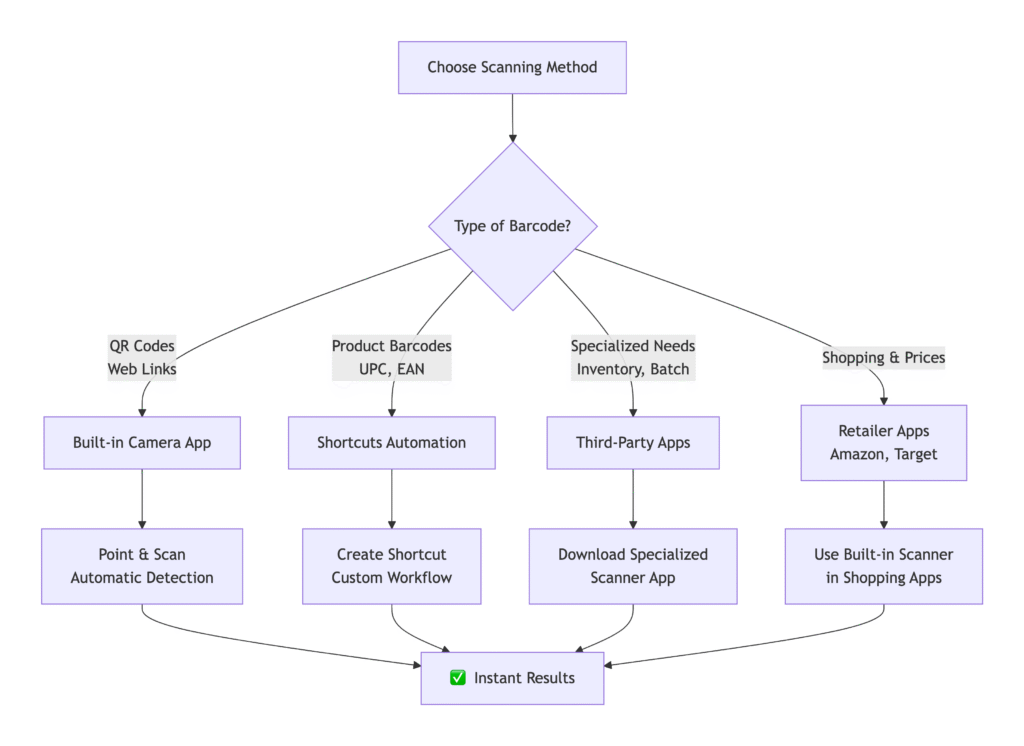
Method 1: Using Built-in Camera App (Quickest Method)
For QR Codes & Simple Barcodes
Step-by-Step Guide:
- Open Camera App 📸
- Launch the native Camera app from your home screen
- No need to switch to any special mode
- Position the Barcode
- Point your camera at the barcode
- Hold steady 6-12 inches away
- Ensure good lighting
- Wait for Automatic Detection
- iPhone will automatically recognize QR codes
- A notification banner appears at the top
- Tap the Banner
- For QR codes: Opens the linked content immediately
- For some barcodes: Shows product information
✅ Best For: QR codes, website links, contact information
❌ Limitations: Doesn’t work with all product barcodes
Method 2: Using Shortcuts App (Most Powerful)
Create Custom Barcode Scanner
Setup Process:
- Open Shortcuts App
- Find the pre-installed Shortcuts app (red icon)
- Tap “+” to create new shortcut
- Add Scanning Action
- Tap “Add Action”
- Search “Scan Barcode”
- Select “Scan Barcode/QR Code”
- Configure Actions (Examples):
- Search Online: Add “Search Web” action
- Check Prices: Add “Get Details of Product”
- Save to Notes: Add “Append to Note” action
- Save & Use
- Name your shortcut (e.g., “Product Scanner”)
- Tap to run anytime
Pro Tip: Add frequently used shortcuts to your Home Screen for one-tap access
Method 3: Using Third-Party Apps (Most Versatile)
Recommended Barcode Scanner Apps:
| App | Best For | Cost | Key Features |
|---|---|---|---|
| ScanLife | Everyday use | Free | Product info, price comparison |
| QR Reader | QR Codes | Free | History saving, batch scanning |
| Barcode Scanner | Inventory | Free | CSV export, bulk operations |
| Scanner for Me | Business | Freemium | Cloud sync, team features |
How to Use Third-Party Apps:
- Download from App Store
- Grant Camera Permissions when prompted
- Point at Barcode – app automatically detects
- View Results – prices, reviews, product details
Method 4: Within Specific Apps (Contextual Scanning)
Built-in Scanners in Popular Apps:
🛒 Shopping Apps:
- Amazon: Search bar → camera icon
- eBay: Search → barcode icon
- Target: Search → scan products
📦 Package Tracking:
- Shop: Automatically detects tracking barcodes
- Delivery: Built-in package scanner
🍎 Grocery & Nutrition:
- MyFitnessPal: Food → barcode scanner
- Lose It!: Track food via barcode
Problem: Camera Won’t Scan Barcode
Solutions:
- Clean camera lens – smudges affect scanning
- Improve lighting – avoid glare and shadows
- Steady your hand – use a surface for support
- Try different angle – 45-degree angle often works better
- Check focus – tap screen to manual focus
Problem: No Automatic Detection
Enable in Settings:
- Go to Settings > Camera
- Ensure “Scan QR Codes” is enabled
- For older iPhones, check “Show Detected Text”
Problem: Blurry or Unreadable Barcodes
Quick Fixes:
- Move closer/further away
- Use maximum resolution
- Avoid curved surfaces
- Print a new barcode if damaged
🚀 Advanced Tips & Tricks
Batch Scanning Multiple Items
- Use apps like “Quick Scan” for inventory
- Create Shortcuts workflows for multiple scans
- Enable continuous scanning mode in capable apps
Offline Scanning
- Some apps work without internet
- Data saves locally until connection resumes
- Perfect for warehouses with poor reception
🔒 Privacy & Security Considerations
Safe Scanning Practices:
- ✅ Only scan barcodes from trusted sources
- ✅ Check URLs before opening from QR codes
- ✅ Use reputable scanner apps with good reviews
- ✅ Review app permissions regularly
Red Flags:
- ❌ Apps requesting unnecessary permissions
- ❌ QR codes leading to suspicious websites
- ❌ Scanner apps with excessive ads
📊 Comparison: iPhone vs. Dedicated Scanners
| Feature | iPhone | Dedicated Scanner |
|---|---|---|
| Cost | Free (using existing device) | $100-$500+ |
| Portability | Excellent | Good |
| Battery Life | Limited by phone battery | All-day operation |
| Scanning Speed | Fast for occasional use | Faster for high-volume |
| Durability | Not designed for heavy use | Industrial-grade |
iPhone Barcode Scanning FAQ
Quick answers to common questions about scanning barcodes with your iPhone
What types of barcodes can iPhone scan?
Your iPhone can scan these barcode types:
- ✅ QR Codes – Built-in camera support
- ✅ UPC/A – Product barcodes (with apps)
- ✅ EAN-8/13 – International products
- ✅ Code 128 – Shipping, inventory
- ✅ Data Matrix – Small item labeling
- ✅ PDF417 – ID cards, boarding passes
Note: Native Camera app only scans QR codes automatically. Other types require third-party apps.
How do I enable barcode scanning in iPhone settings?
Follow these steps to enable scanning:
- Open Settings app
- Scroll down to Camera
- Toggle on “Scan QR Codes”
- For iOS 15+: Enable “Show Detected Text”
Additional settings:
- Grant camera permissions to scanner apps
- Enable “Camera” access in Settings > Privacy
- Allow “Photos” access for scanning from gallery
Why is my iPhone not scanning barcodes properly?
Common issues and solutions:
Can I scan barcodes from existing photos?
Yes, with these methods:
📱 Using iOS Built-in Feature (iOS 15+):
- Open Photos app
- Select photo with barcode
- Press and hold on the barcode
- Tap the pop-up link to open
🛠️ Using Third-Party Apps:
- QR Reader – Import from camera roll
- ScanBot – Batch photo scanning
- Barcode Scanner – Gallery import feature
Tip: Ensure the barcode is clear and not angled in the photo for best results.
What are the best free barcode scanner apps?
📱 ScanLife
- ✅ All barcode types
- ✅ Price comparison
- ✅ Product reviews
- ⭐ Rating: 4.7/5
🔍 QR Reader
- ✅ Fast QR scanning
- ✅ History saving
- ✅ Batch scanning
- ⭐ Rating: 4.8/5
📦 Barcode Scanner
- ✅ Inventory management
- ✅ CSV export
- ✅ Bulk operations
- ⭐ Rating: 4.5/5
How can I scan barcodes faster?
Pro tips for faster scanning:
Hold 6-12 inches from barcode
Natural light works best
Rest elbows on surface
Wipe camera regularly
In low-light conditions
30-45 degrees often works
Can I use iPhone for business inventory?
Yes, but consider these factors:
✅ Advantages
- No additional hardware cost
- Easy to use and portable
- Regular software updates
- Multiple app choices
❌ Limitations
- Battery life limitations
- Less durable than dedicated scanners
- Slower for high-volume scanning
- Can’t scan from long distances
Recommended for: Small businesses, occasional inventory, low-volume scanning
Not recommended for: Warehouses, all-day scanning, harsh environments
Are barcode scanner apps safe to use?
Safety guidelines for scanner apps:
Check ratings, reviews, and developer history
Only grant camera access, avoid unnecessary permissions
Ensure they don’t store your scan data
Native Camera app is always safest for QR codes
- Apps requesting unnecessary permissions
- Excessive ads or pop-ups
- No privacy policy available
- Poor user reviews
🎯 Final Recommendations
For Casual Users:
Stick with the built-in Camera app for QR codes and use Amazon/retail app scanners for products.
For Power Users:
Install a dedicated barcode scanner app and create custom Shortcuts for your specific needs.
For Business Use:
Consider enterprise-grade scanning apps or dedicated hardware for high-volume requirements.
🔄 Quick Start Checklist
- Test Camera app with QR code
- Enable QR scanning in Settings if needed
- Download preferred scanner app
- Create useful Shortcuts workflows
- Practice with different barcode types
- Learn troubleshooting techniques
Your iPhone is more capable than you might think when it comes to barcode scanning. With these methods and tips, you’ll be scanning like a pro in no time! 🚀