
QR codes have become a popular way to share passwords securely. Whether it’s for Wi-Fi networks, app logins, or encrypted files, that little square can hold important access credentials. But how do you actually extract the password from a QR code using online tools? And more importantly, how can you do it safely?
Let’s explore the methods, tools, and crucial security considerations.
🛠️ How to Extract Passwords from QR Codes Online
Method 1: Using Free Online QR Code Readers
Step-by-Step Process:
- Capture the QR Code – Take a clear photo or screenshot of the QR code
- Visit a Reputable QR Reader Website such as:
- QRCode Monkey
- Online QR Code Reader
- QR Scanner Online
- Upload Your Image – Drag and drop or browse for your QR code image
- Extract the Content – The website will decode and display the text
- Identify the Password – Look for password fields or plain text credentials
Method 2: Using Browser-Based Camera Scanning
For Real-Time Scanning:
- Open a web-based QR scanner that supports camera access
- Allow camera permissions when prompted
- Point your camera at the QR code
- The password will appear in the text results
Method 3: Dedicated Password QR Code Readers
Some specialized tools are designed specifically for password-containing QR codes, especially for Wi-Fi credentials.
⚠️ MAJOR SECURITY WARNING: Understanding the Risks
Before you proceed, understand these critical security concerns:
🚨 Red Flags to Watch For:
- Malicious QR Codes can lead to phishing sites
- Unsecure websites might store your scanned data
- Man-in-the-middle attacks can intercept your transmission
- Data logging by untrustworthy services
✅ Safe Practices:
- Use reputable, well-known QR scanning services
- Check for HTTPS in the website URL
- Avoid scanning QR codes from untrusted sources
- Use offline methods when possible for sensitive passwords
🛡️ Recommended Safe Online QR Readers
| Tool | Safety Level | Best For | Privacy Features |
|---|---|---|---|
| QRCode Monkey | ✅ High | General use | No data storage |
| ZXing Decoder | ✅ High | Technical users | Open source |
| Online QR Scanner | ✅ Medium | Quick scans | Temporary processing |
| Barcode Reader Online | ✅ Medium | Multiple formats | SSL encrypted |
🔒 Alternative: Offline Methods (Recommended for Sensitive Data)
For maximum security with password QR codes, consider these offline approaches:
Mobile Apps with Offline Capability:
- Google Lens (processes locally)
- QR & Barcode Scanner (offline mode)
- Your phone’s built-in camera app
Desktop Software:
- QR Journal (Windows/Mac)
- Barcode Scanner Software (local processing)
🌐 Common Password QR Code Formats
When you scan a password QR code, you might encounter these formats:
Wi-Fi Password Format:
WIFI:S:MyNetwork;T:WPA;P:MyPassword123;;
- S: Network SSID
- T: Encryption type (WPA, WEP, None)
- P: Password
Generic Login Format:
https://username:password@example.com
📋 Step-by-Step: Safe Password Extraction Guide
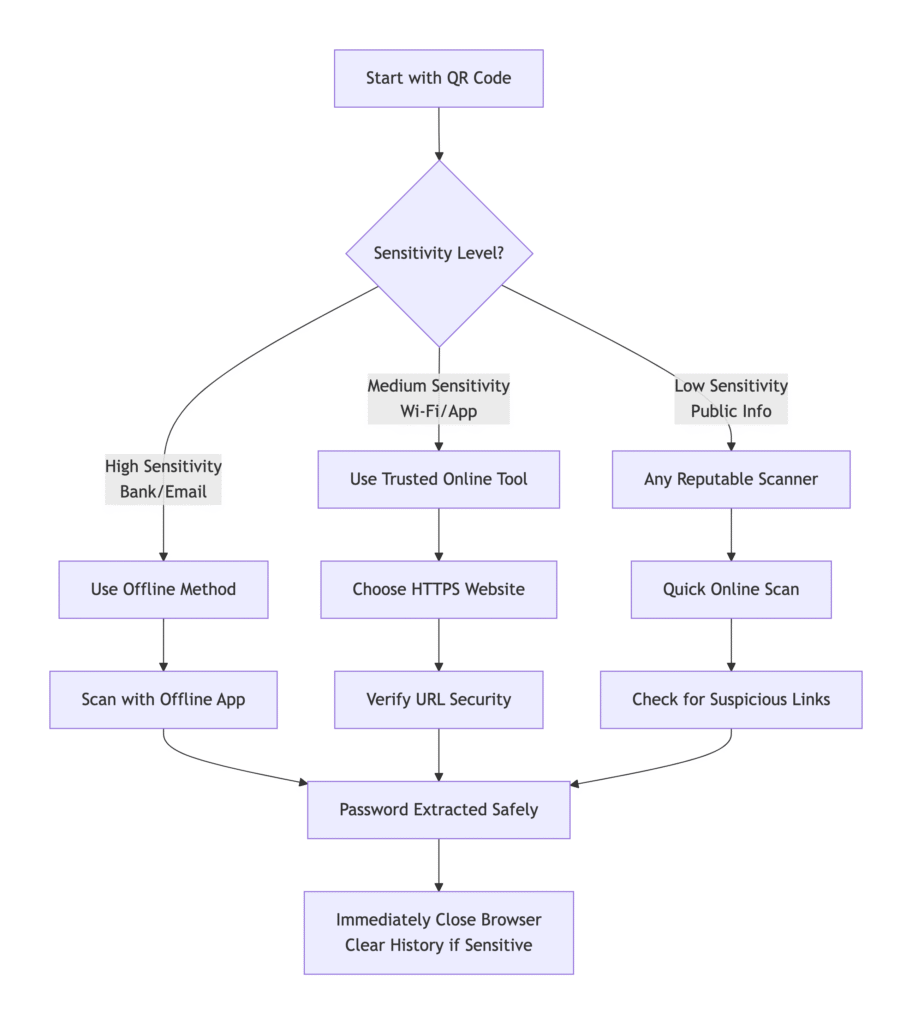
Step 1: Assess the Sensitivity
- Is this a banking password? → Use offline method
- Is this a Wi-Fi password? → Can use trusted online tool
- Is this a public service password? → Most tools are fine
Step 2: Choose Your Tool Based on Sensitivity
- High sensitivity: Offline mobile app
- Medium sensitivity: Reputable online scanner with HTTPS
- Low sensitivity: Any reliable online QR reader
Step 3: Scan and Extract
- Follow the tool’s instructions
- Never grant unnecessary permissions
- Look for the password in the decoded text
Step 4: Security Cleanup
- Close the browser tab immediately
- Clear browser cache if you used an online tool
- Don’t save the password in your browser
FAQ: Password QR Code Safety & Solutions
Your questions answered about extracting passwords from QR codes safely
Can online QR readers steal my passwords?
+Potentially, yes. Malicious websites could log the QR code content. Always use reputable services and avoid scanning highly sensitive passwords (like banking credentials) with online tools. Look for sites that explicitly state they don’t store your data.
What’s the safest way to read password QR codes?
+Use offline methods like your phone’s built-in camera app or trusted mobile apps that don’t require internet access. These process the QR code locally without transmitting data. Recommended offline apps include: Google Lens, QR & Barcode Scanner (offline mode), or your phone’s native camera.
How do I know if an online QR reader is trustworthy?
+Look for these trust signals:
✅ HTTPS encryption in the URL
✅ Clear privacy policy stating they don’t store data
✅ No required sign-up or personal information
✅ Positive user reviews and ratings
✅ Reputable company backing
❌ Avoid unknown sites with excessive ads or pop-ups
What should I do if I accidentally scanned a suspicious QR code?
+Immediate actions:
1. Close the browser/application immediately
2. Clear your browser cache and cookies
3. Run a malware scan on your device
4. Monitor your accounts for suspicious activity
5. Change any passwords that were exposed
6. Check for unauthorized app installations
Can I create secure password QR codes for my own use?
+Yes! Use trusted QR generators that don’t store your data. Consider:
• Offline QR generators on your computer
• Password-protected QR codes for extra security
• Encrypted QR code services with end-to-end encryption
• Always test with non-sensitive data first
What types of passwords should NEVER be scanned with online tools?
+Never use online scanners for:
🔴 Banking and financial app passwords
🔴 Email account credentials
🔴 Social media login information
🔴 Work or corporate network passwords
🔴 Government service logins
🔴 Cryptocurrency wallet passwords
Does taking a screenshot of a QR code compromise security?
+It depends on your device security. Screenshots are generally safe if:
• Your phone is locked with secure authentication
• You delete the screenshot immediately after use
• Your photos aren’t automatically backed up to cloud services
• Avoid storing sensitive QR code screenshots in unsecured locations
Are there any quick security checks before scanning a password QR code?
+5-second security checklist:
🔍 Source: Do you trust who gave you the QR code?
🌐 Context: Is this in a secure environment?
📱 Device: Is your device secure and updated?
🔒 Tool: Are you using a trusted scanning method?
🚫 Exit: Do you have an easy way to abort if something seems wrong?
What if the QR code doesn’t reveal a clear password format?
+Common scenarios:
• It might be a URL redirect – check the web address carefully
• Could be encrypted content requiring a decryption key
• Might be a configuration file with embedded credentials
• Possibly a multi-part QR code requiring multiple scans
• If unclear, don’t proceed – seek alternative authentication methods
Can I test if an online QR scanner is safe without risking my password?
+Yes! Use this testing method:
1. Create a test QR code with fake credentials
2. Scan it with the online tool
3. Check if the site shows excessive ads or redirects
4. See if it requests unnecessary permissions
5. Test if it works without internet connection (if possible)
6. Only proceed with real passwords if all tests pass
🎯 Key Takeaways for Safe Password Extraction
- Prioritize Offline Methods for sensitive passwords
- Verify Website Security before using online tools
- Understand QR Code Formats to quickly identify passwords
- Clear Your Data after using online scanners
- Trust Your Instincts – if a site seems suspicious, leave immediately
🔚 Final Recommendation
While online QR code readers offer convenience, for password extraction, offline methods are significantly safer. Reserve online tools for non-critical passwords and always prioritize security over convenience when dealing with important credentials.
Remember: that QR code might contain more than just a password—it could be a gateway to your digital security. Treat it with the same caution you would any other sensitive information.
Disclaimer: This article is for educational purposes. Always exercise extreme caution when handling passwords and sensitive information online. The tools and methods mentioned should be used at your own risk.