
You see a poster for a cool new app with a QR code that says, “Scan to Download from the Play Store.” It sounds simple, but how does it actually work? Whether you’re on an Android phone or an iPhone, this guide will show you exactly how to scan that code and get the app in seconds.
Let’s break down the process.
The Two Ways to Scan (And Why They’re Different)
The method you use depends on the device you’re holding. The journey is slightly different for Android and iPhone users, as illustrated below.
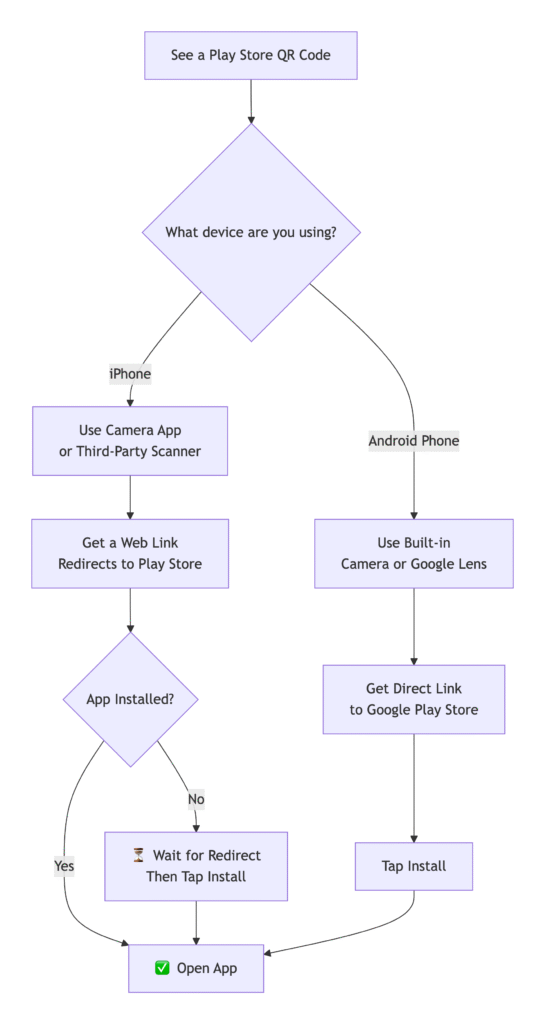
Method 1: For Android Users (The Native Experience) 🤖
Android phones have scanning capabilities built right in, making this process seamless.
Step 1: Open Your Camera App 📷
Simply launch your phone’s standard camera app.
Step 2: Point the Camera at the QR Code
Frame the QR code within your camera’s viewfinder. Hold your phone steady for a second.
Step 3: Tap the Notification Pop-up
A notification should automatically appear on your screen with a link to the app on the Google Play Store. Tap it.
Step 4: Download the App
You’ll be taken directly to the app’s page on the Play Store. Tap “Install” to download it.
💡 Pro Tip: If the notification doesn’t appear, you might need to enable QR code scanning in your Camera app’s settings, or use Google Lens (which is often integrated into the Google App or your camera).
Method 2: For iPhone Users (The Slightly Different Path)
iPhones also make scanning easy, but the journey to the Play Store has an extra step.
Step 1: Open Your Camera App 📷
Just like on Android, open your iPhone’s built-in Camera app.
Step 2: Point the Camera at the QR Code
Center the QR code on your screen. A notification banner should pop up at the top of your screen.
Step 3: Tap the Banner
The banner will typically show a URL (e.g., play.google.com/...). Tap it. This will open the link in your Safari web browser.
Step 4: The Redirect to Play Store
Since you’re on an iPhone, you can’t open the Google Play Store directly. Instead, the webpage will automatically detect your device and offer a button to “Open in Play Store?” or similar.
Step 5: Confirm and Switch Apps
Tap “Open,” and your phone will switch from Safari to the Google Play Store app (if you have it installed). From there, you can tap “Install.”
💡 Pro Tip: Don’t have the Play Store app on your iPhone? You don’t need it! The webpage will still show you the app and often provide information, but remember, you can only install Android apps from the Play Store onto an Android device.
What If My Camera Doesn’t Scan the Code?
No worries! This is a common issue. Here are your alternatives:
- Use a Dedicated QR Scanner App: Search for “QR scanner” in your device’s app store. There are many free, reliable options.
- Use Google Lens (Android): Open the Google App and tap the Lens icon.
- Use the “Search with Camera” Feature (iPhone): In the Safari address bar, tap the camera icon to use Visual Search.
FAQ: Your Play Store QR Code Questions Answered
Quick answers to common questions about scanning QR codes for the Play Store
Why does my Android camera not scan the QR code?
+Check your Camera settings to ensure “Google Lens suggestions” or “Scan QR codes” is enabled. If not, your phone’s model might require a separate QR scanner app from the Play Store.
I’m on an iPhone. Can I install an Android app from the Play Store?
+No. The Google Play Store is for Android apps only. Scanning a Play Store QR code on an iPhone will show you the app, but you cannot install it. You would need to search for the equivalent iOS app on the Apple App Store.
Is it safe to scan random Play Store QR codes?
+Generally, scanning a code that takes you directly to the official Play Store is safe. However, be cautious of codes from untrusted sources. Always check the URL in the preview before tapping—make sure it starts with play.google.com. Never download an app from a third-party website.
The QR code just takes me to a website, not the Play Store. Why?
+Not all QR codes are created equal. The code might be designed to take you to a promotional website first, or it might be a generic web link. If it’s meant for the Play Store, there should be a clear redirect or a link on the webpage that sends you to the app.
Do I need a specific app to scan a Play Store QR code?
+In most modern smartphones, no. The built-in camera app is sufficient. However, if it’s not working, a dedicated scanner app is a good backup.
Scan Smarter, Download Faster 🚀
Scanning a QR code to get an app is one of the fastest ways to go from discovery to download. Now that you know the simple steps for both Android and iPhone, you can unlock new apps instantly and with confidence. Happy scanning